
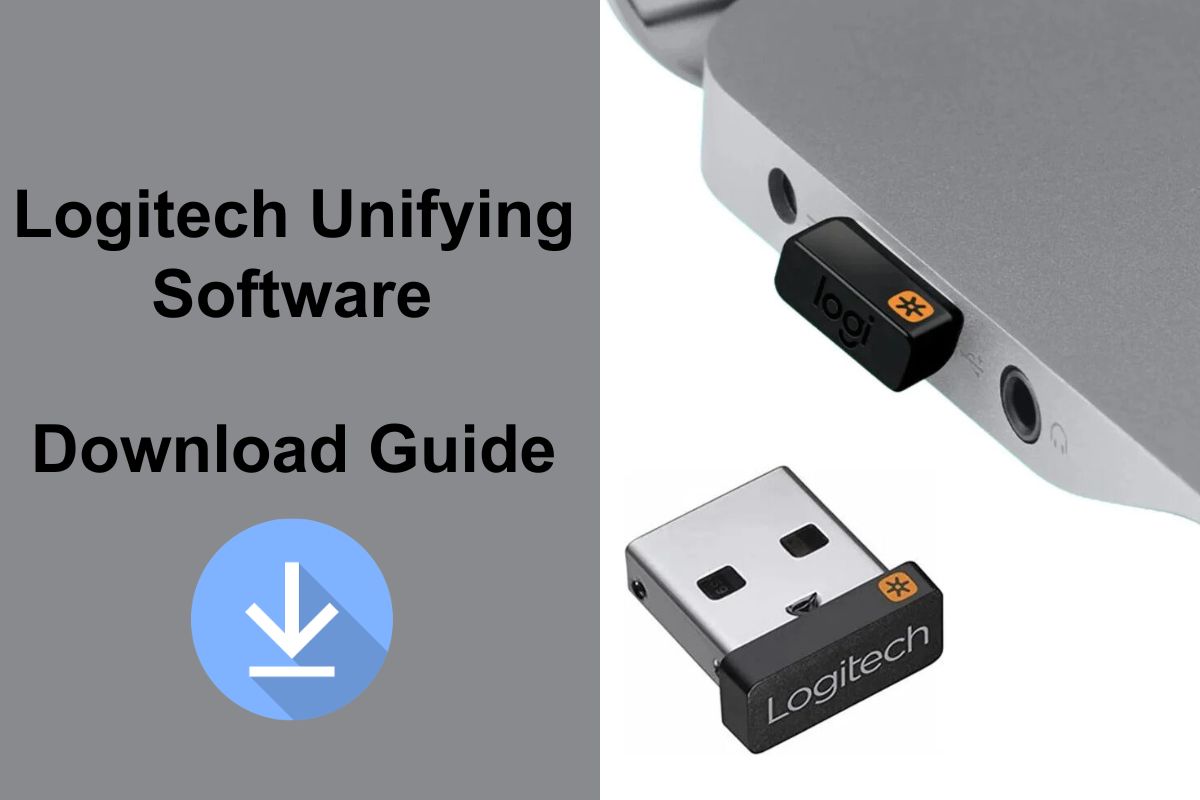
Today I’ll talk about Logitech Unifying Software. If you use a Logitech wireless mouse or keyboard, you’ve likely heard the term “Unifying Receiver.” Many people use different USB receivers, which take up unnecessary ports. However, if you Logitech Unifying Software Download, you can connect multiple devices to a single receiver.
In this detailed guide, we’ll cover these points step-by-step:
- What is Logitech Unifying Software?
- How to download it.
- How to install it on Windows and Mac.
- How to pair a mouse and keyboard.
- Solutions to common problems.
- Common problems.
Let’s start with the following:
What is Logitech Unifying Software Download?
Logitech Unifying Software is a free tool that allows you to connect up to six compatible Logitech devices to a small USB Unifying Receiver.
This software is officially provided by Logitech and works on both Windows and Mac.
Here are some of its benefits:
- Connecting multiple devices to a single receiver
- USB ports are saved
- Desk stays clean and organized
- Device management becomes easier
How to download Logitech Optimizing Software?
There are a few setup steps to download the software, but I’m describing the simplest setup here.
Step 1:
Go to the official Logitech Support website: https://support.logi.com
Step 2:
Type “Unifying Software” in the search bar.
Step 3:
Select your operating system:
- Windows 11
- Windows 10
- macOS
Step 4:
Click the Download button and save the installer file.
You can also download directly from Logitech’s official page: https://www.logitech.com
For security, always download from the official website.
How to install on Windows
If you’re using Windows 10 or Windows 11, follow these steps:
- Double-click the downloaded file
- Click “Run”
- The installation wizard will open
- Accept the terms
- Press the Install button
- Click Finish
After the installation is complete, the software will automatically launch.
How to install on Mac
This process is also very simple for Mac users:
- Open the DMG file
- Drag it to the Applications folder
- Open the app
- Allow system permissions
Just do this and the software will be ready.
How to pair Logitech devices?
Now for the most important part—connecting the devices.
Step 1:
Plug the Unifying Receiver into a USB port on your computer.
Step 2:
Turn on your Logitech mouse or keyboard.
Step 3:
Open the Unifying Software.
Step 4:
Click the “Add Device” option.
The software will automatically search for nearby compatible devices.
Step 5:
If the device appears on the screen, click “Next” and complete the pairing.
You can repeat this process to connect up to 6 devices.
How to check compatible devices?
Not every Logitech device is compatible.
A simple way to check:
Look for the orange Unifying logo on the bottom of the device or on the box. This will tell you which devices are compatible and which are not.
Example compatible devices:
- Logitech MX series mouse
- Logitech K-series keyboards
- Wireless presenters
If the logo is missing, the device may not support Unifying Receiver.
Common problems and their solutions
Here are some common problems that often arise:
1. Device is not detected
- Check if the batteries are fresh.
- Try turning the device off and on.
- Try reconnecting the receiver to a different USB port.
2. Unifying Receiver Not Working
- Restart your computer.
- Reinstall the latest version of software.
- Check in Windows Device Manager.
And if the problem still persists, you can also consult Microsoft’s troubleshooting guide: https://support.microsoft.com
3. Software is not installing
- Disable antivirus temporarily
- Run in administrator mode
- Check for system updates
Logitech Unifying Receiver vs Logi Bolt – What is the Difference?
Logitech recently introduced a new receiver called the Logi Bolt.
The difference is simple:
- The Unifying Receiver is older and more widely compatible.
- The Logi Bolt is more secure and designed for enterprise users.
- The two are not compatible with each other.
So, be sure to check compatibility when purchasing a device.
Is Logitech Configuring Software Safe?
Yes, it’s 100% safe if you download from the official website. You should only download from the official website.
Avoid downloading from third-party websites as they may contain modified or infected files.
Friends, If your computer feels slow while detecting devices, you may need to speed up your old laptop to improve performance and avoid connection issues.
Conclusion
Finally, if you use multiple Logitech wireless devices, downloading Logitech Unifying Software could be the best decision for you. It saves your USB ports, keeps your desk clean, and makes device management easy.
The installation process is simple, pairing is fast, and troubleshooting is easy. Just make sure you download from the official website and download the latest version.
FAQs
What is Logitech Unifying Software?
Logitech Unifying Software is a free tool that allows users to connect up to six compatible Logitech wireless devices to one USB Unifying Receiver. After completing the Logitech Unifying Software download, you can easily manage and pair multiple devices from one place.
Is the Logitech Optimizing software download free?
Yes, the Logitech Optimizing Software download is completely free.
How do I complete the Logitech Unifying Software download?
To complete the Logitech Unifying Software download, visit the official Logitech support website, select your operating system, and install the setup file. Always download the latest version to ensure proper device compatibility.
Why is my Logitech Unifying receiver not working after the Logitech Unifying Software download?
If your receiver is not working after the Logitech Unifying Software download, check the device batteries, restart your computer, try another USB port, and reinstall the latest version of the software.
Is Logitech Unifying Software download compatible with Windows 11?
Yes, the Logitech Unifying Software download is fully compatible with Windows 11 as well as macOS systems, allowing smooth pairing of supported devices.